
The main window
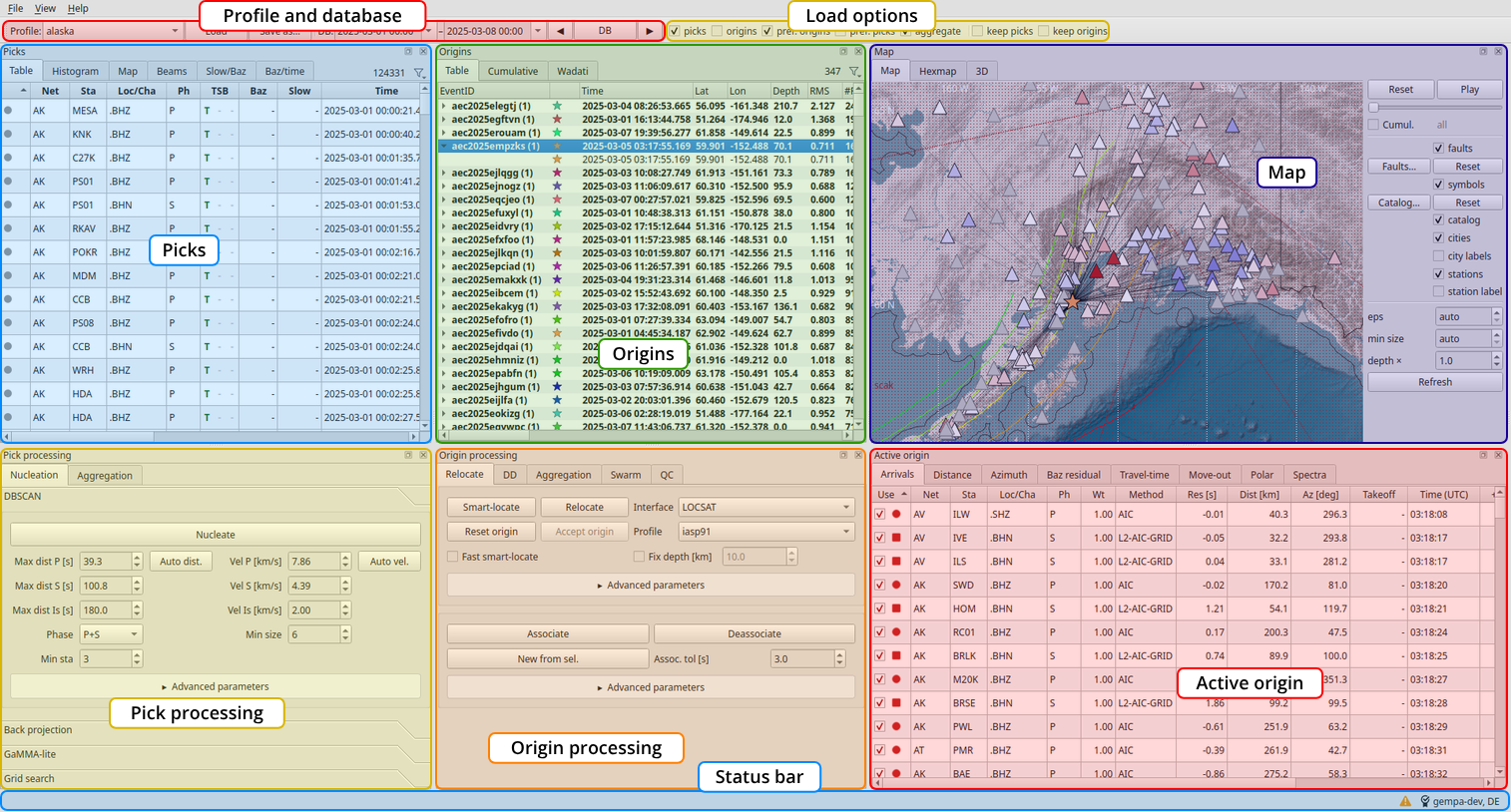
The main window with its areas, described in the table below.
The main window consists of a toolbar, six panels arranged in two rows and a status bar:
Area |
Content |
|---|---|
Profile and database |
Selects, loads and saves a processing profile, and sets the time window of a database load. See Toolbar. |
Load options |
What a database load fetches and keeps: picks, origins, preferred origins and their picks, aggregation after loading. See Toolbar. |
Picks |
The loaded picks as a table, as a histogram over time and as array plots (Map, Beams, Slow/Baz, Baz/time). See Picks panel. |
Origins |
The events with their origins and quality metrics, the cumulative count and the Wadati diagram. The selected origin is the active origin. See Origins panel. |
Map |
Map, hexagon density map and 3D view. See Map panel. |
Pick processing |
Tools that work on picks: nucleation and aggregation. See Nucleation and Pick aggregation and filtering. |
Origin processing |
Tools that work on origins: relocation, association, DD relocation, aggregation, swarm recovery and quality control. See Refining origins and Quality control. |
Active origin |
Arrivals and diagnostic plots of the active origin: distance, azimuth and back-azimuth residuals, travel time, move-out and polar plot. See Active origin panel. |
Status bar |
A pending relocation result (until it is accepted or reset) on the left; the log state and license on the right. |
Every control has a tooltip. Hover over a control to see what it does. Hovering a station on the map or a pick marker in a plot shows the station name, phase and pick time.
View → Panels shows or hides panels, and View → Home (reset layout) restores the default arrangement. The layout is saved when catalyst closes. View → Application Log shows the log messages.
Toolbar
Profile
Profile selects a processing profile. Load applies it, Save as… saves the current settings to a profile file.
Database
The database part of the toolbar loads picks and origins for a time window. Set the start and end time and press Load. The arrow buttons move the window back or forward by its own length and load it, for working through a long period in steps.
Option |
Description |
|---|---|
picks |
Load all picks in the window. |
origins |
Load all origins in the window, including alternative solutions. |
pref. origins |
Load only the preferred origin of each event. |
pref. picks |
Load only the picks associated with those preferred origins. |
aggregate |
Aggregate the picks automatically after loading. |
keep picks |
Add the picks to those already loaded instead of replacing them. |
keep origins |
Add the origins to those already loaded instead of replacing them. |
The database part is only enabled when catalyst is connected to a database.
Selecting origins
Click a row in the origin table to make it the active origin.
Clicking an event row selects the event’s preferred origin. Expand the event to select any of its other origins.
Shift+click and Ctrl+click select several origins, also origins of different events; Ctrl+A selects all visible origins.
Right-click a row to star or unstar the origin, or to set its event type.
Clicking a cell on the Hexmap selects the origins in that cell.
Clicking a pick on the map selects the origins it belongs to.
Many tools work on the selected origins, or on all visible origins when nothing is selected. Their buttons show which, for example “Smart-locate 12” or “Smart-locate all (340)”.